
Product · Manage
How this site gets crawled
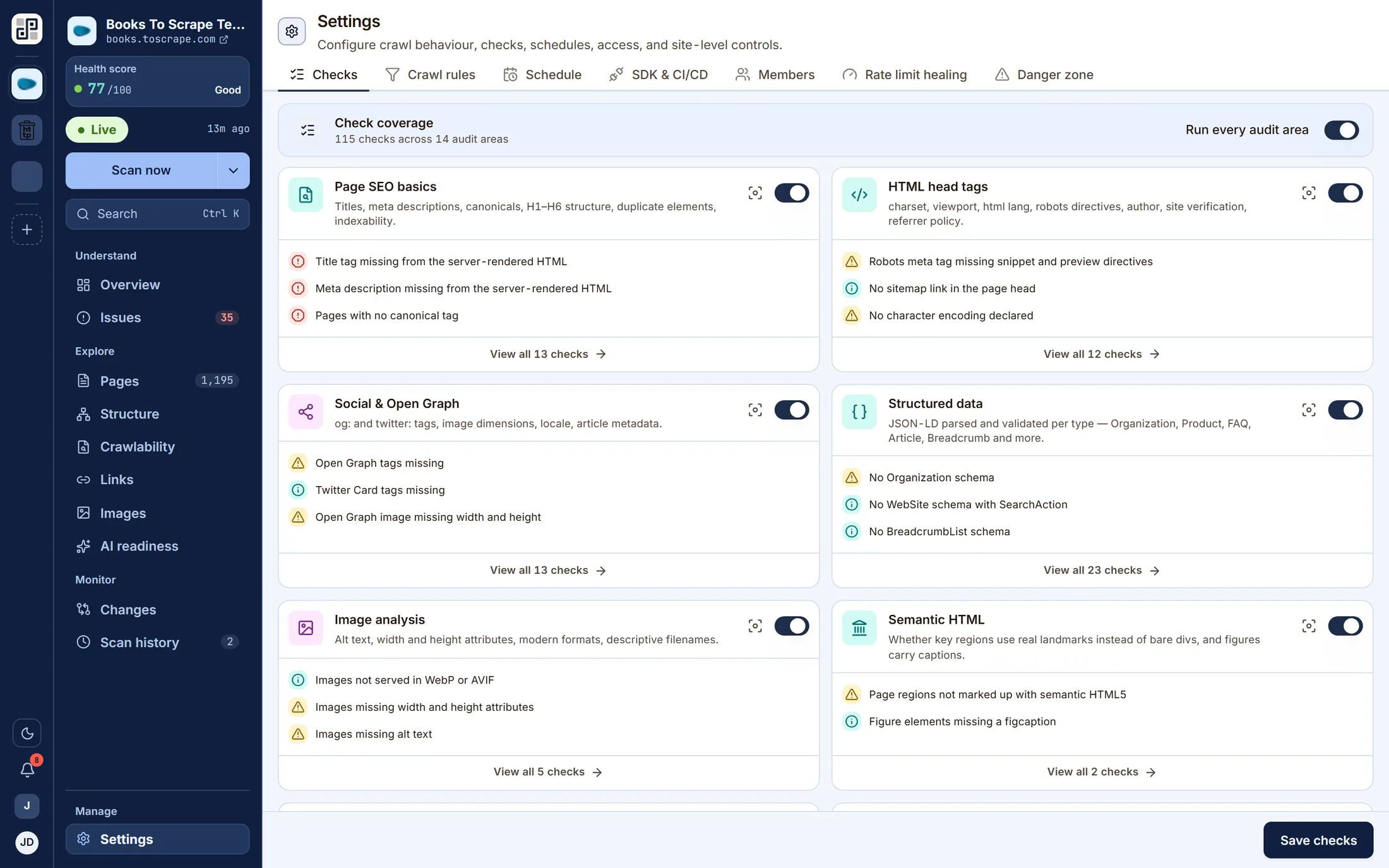
Turn any of the 100+ checks' disciplines off per site, set crawl rules and exclusions, put the site on a schedule in your own timezone, issue a CI/CD secret, and decide who can see it.
Also on this screen
One more view
Behind the tabs on the capture above. Same crawl, same run — a different question asked of it.
- app.pixyscan.com/w/…/s/…/settings
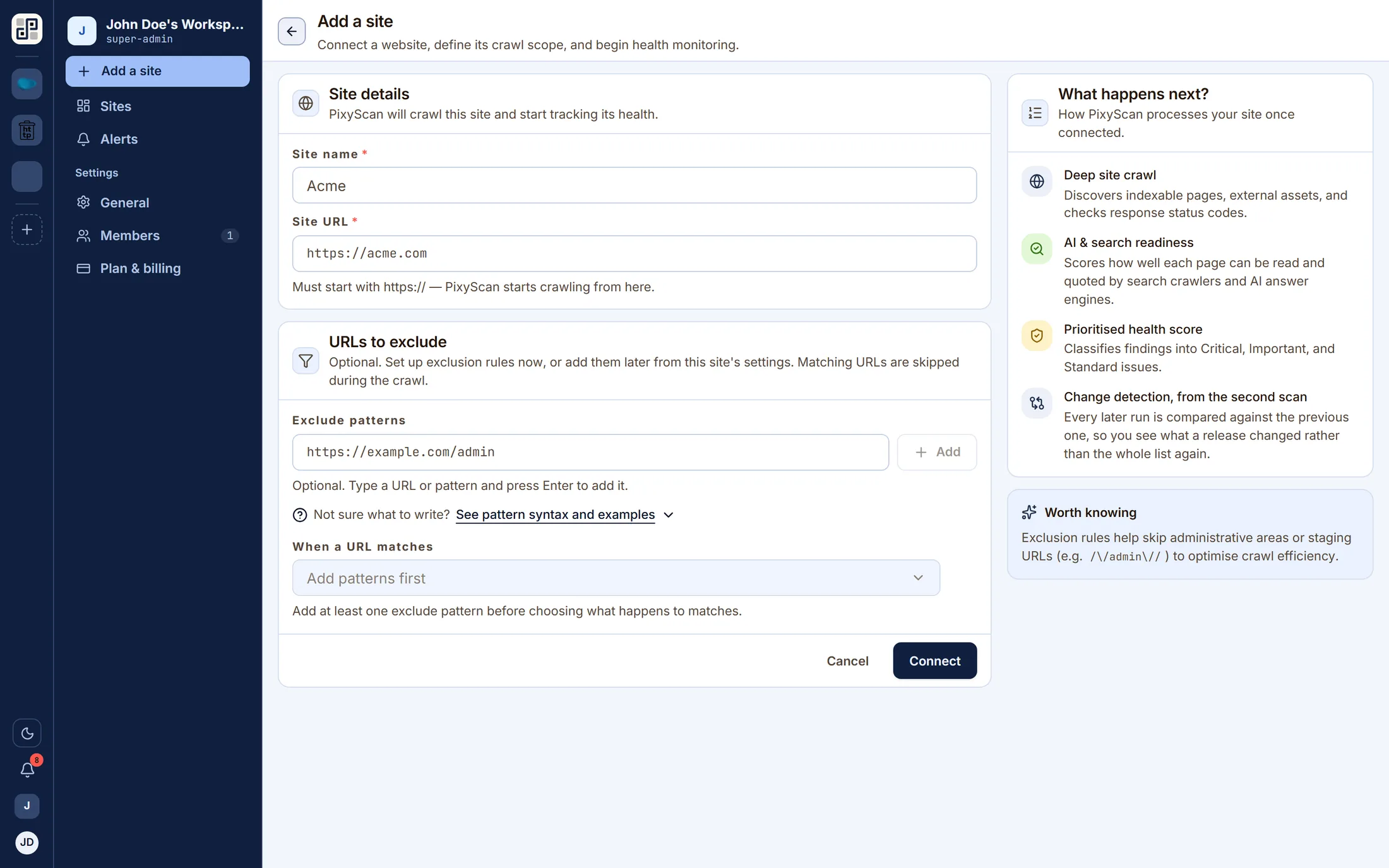
Connecting a site: a URL, a page budget and the crawl rules, before the first scan runs.
What it answers
The questions this screen exists for
If none of these is a question you have, this is not the lens you want — one of the other ten probably is.
- 01How do I stop being marked down for a discipline that does not apply?
- 02How do I keep the crawler out of /admin?
- 03How do I make this run itself every week?
- 04How do I give one contractor one site?
On the screen
What you actually get
Four things, each of which is visible in the capture above.
Per-discipline toggles — an image-free documentation site has no use for the image audit.
Exclusion patterns with a mode, so a rule can be additive or absolute.
Daily, weekly or monthly schedules, in the timezone you actually work in.
A per-site client secret and a branch-to-environment map for CI.
The other lenses
One crawl, eleven readings of it
They are not separate scans. Each of these is the same dataset asked a different question.
See Settings against your own site
Connect one site free and run a crawl. Every lens on this page fills with your own pages within a few minutes.
Free plan · 1 site · 500 URLs a month · all 100+ checks · no card