

User guide3 min
Billing
The Billing view shows what your workspace pays for and how much you have used. The Usage tab counts your URL credits for this billing period. The second tab shows your subscription, its limits and every past payment.
How to get there#
The Billing view is called Plan & billing in the Settings group of the workspace sidebar.
- 1
Go to the workspace
Click the PixyScan mark at the top left, so that no site is open.
- 2
Under Settings, choose Plan & billing
Don't see it? Only the workspace's Super Admin sees this item. That is usually the person who created the workspace.
If anyone else opens the address, they are sent to the workspace settings.
app.pixyscan.com/w/…/settings/billing
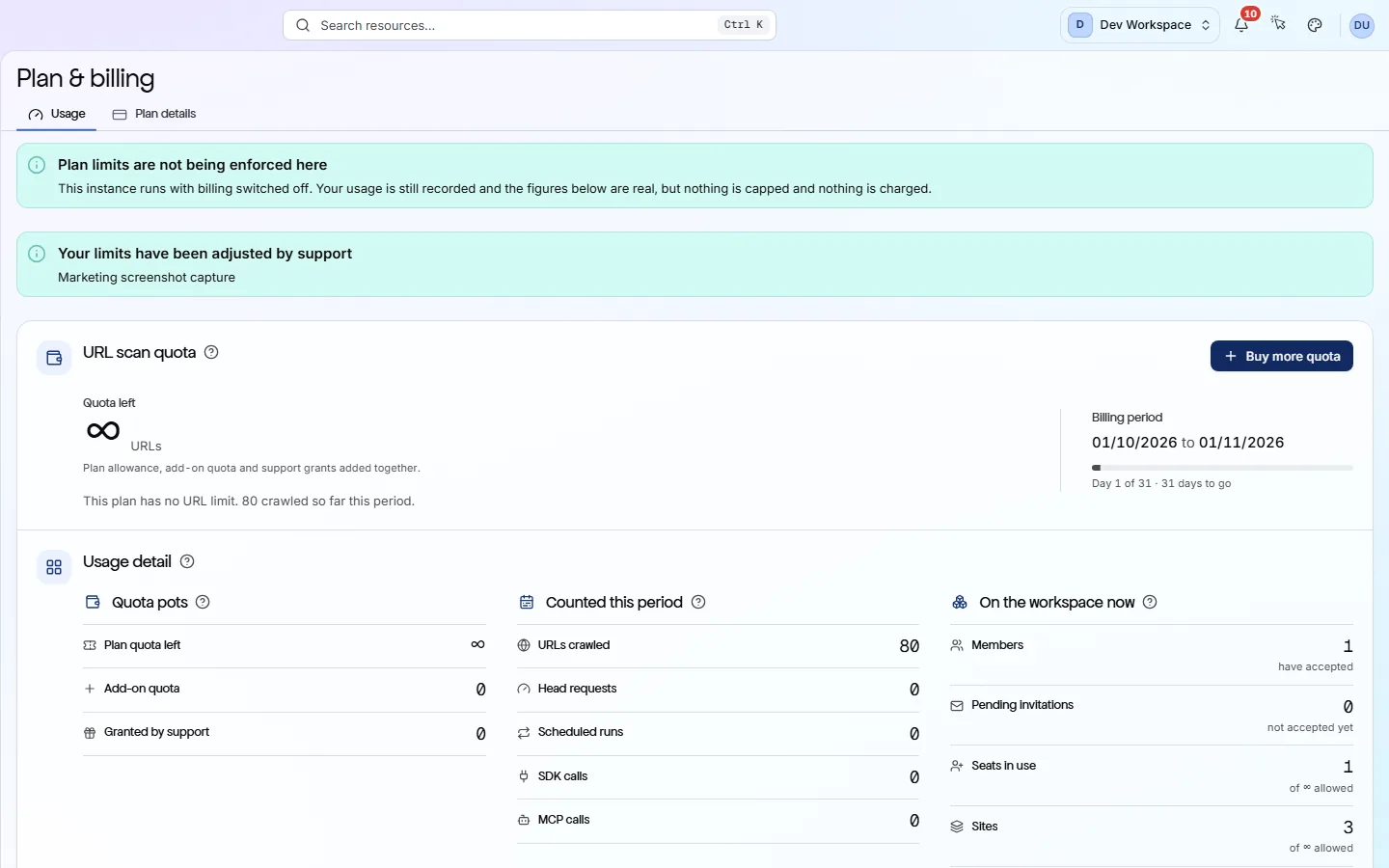
The Usage tab#
Every URL a scan crawls uses one URL credit. This tab shows how many you have used and how many are left.
| Field | What it means | What it does |
|---|---|---|
| Quota left | URLs | How many more URLs your scans can crawl this billing period. You get 500 on Free, 5,000 on Hobby, 20,000 on Basic and 125,000 on Pro. |
| Billing period | Day 20 of 30 | The dates of this period, and how many days are left before your credits reset. |
| Projected usage | URLs | Your average daily use, and where it will leave you at the end of the period. “Over quota” means you will run out before the period ends. |
| URLs not crawled | Count | When some URLs could not be crawled, a ? beside the quota says how many. Those URLs used no credits. |
| Quota pots | Three | Where your credits come from: the credits included with your tier, extra credits you bought, and credits granted by support. |
| Counted this period | Five lines | URLs crawled, head requests, scheduled runs, CLI calls and MCP calls this period. |
| On the workspace now | Four lines | Members, pending invitations, seats in use and sites. |
What happens if I run out of credits?
Credit packs cost $9 for 1,000, $39 for 5,000 and $69 for 10,000. Credits you buy do not expire. The credits included with your tier reset each period, and unused ones do not roll over.
Your subscription details#
The second tab shows what you pay, what it includes and every payment the workspace has made.
The top shows your tier, its price and whether you pay monthly or yearly. Paying yearly costs ten months' price for twelve months.
Below that is a list of what your tier includes: URLs per period, head requests, pages per scan, scans at the same time, seats, sites and how long history is kept.
- 1
To move to another tier, press Upgrade Plan
- 2
To cancel, press Manage billing
This only appears on a paid tier. It opens our payment provider's billing page, where you can cancel, change your card and download invoices.
Cancelling stops your subscription renewing. Back here it shows Not renewing, and you keep your tier until the period ends.
- 3
Changed your mind? Press Manage billing
Turn renewal back on from the same billing page. This works any time before the period ends, and Not renewing disappears here.
Billing history lists every subscription change, payment and credit purchase, newest first.
Limits belong to the workspace, not to you
Does something here not match what you see in the app? Tell us